Enable Liquibase License Tracking
Liquibase License Tracking - Private preview (LLT) allows Liquibase Secure 5.0 users to monitor and report on their license utilization locally across teams, environments, and CI/CD pipelines. This feature provides visibility into active vs expired licenses, compliance risks, operational inefficiencies, and historical insights. Once enabled, this functionality allows you to produce an easy-to-analyze License Tracking report that contains:
The number of licenses tracked
Active licenses
Active licenses nearing expiry
Expired licenses
Total number of licenses
Total number of unique targets for active licenses
License inventory and utilization
A breakdown of the active license usage per tracking ID
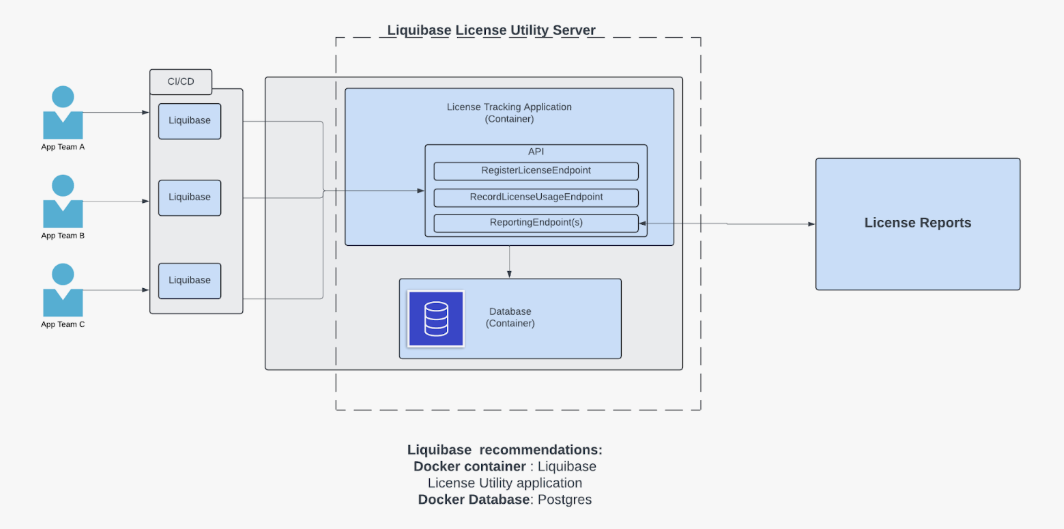
Before you begin
A DNS hostname must be configured for the LLT Server before proceeding. The hostname must resolve correctly from all client machines that will use Liquibase.
Required Port: Port 8080 must be open and accessible from all client machines. LLT must be configured to run on port 8080 to work with Liquibase's default tracking URL. Work with your infrastructure team to:
Create a DNS record that points
liquibase-tracking.localto your LLT Server's IP address.Verify the hostname resolves from client machines
Ensure firewall rules allow traffic on port 8080
Procedure
To use Liquibase License Tracking, simply enable it within your existing Liquibase Secure installation.
The Liquibase License Tracking distributable is located in the dist folder inside your Liquibase installation.
Configure your LLT port
Ensure the port LLT runs on is set to 8080:
Set the SERVER_PORT Environment variable on your LLT host server.
Extract and start the server.
1. Navigate to the dist folder inside your Liquibase installation.
cd liquibase-secure-5.0.2/dist
2. Unzip the license tracking package.
tar -xzf liquibase-license-tracking-1.0.0-beta.tar.gz
3. Navigate to the extracted directory and start the server.
cd liquibase-license-tracking-1.0.0-beta
$ ./start.sh
The server will start and run by default on port 8080. You should see output indicating the server is running at http://localhost:8080/. Leave this terminal window open so the server can run.
Example output
Tomcat started on port 8080 (http) with context path '/'
Started LiquibaseLicenseTracking in [X] seconds...
Configure your liquibase project.
1. Navigate to your Liquibase project directory. This will be the directory where your liquibase.properties file and changelog are located. This should be separate from your installation directory.
2. Enable license tracking in your liquibase.properties file.
Be sure to:
Replace
localhost:8080with your license tracking server URL.Replace
your-unique-idwith a unique identifier for this Liquibase instance. This could be an environment name, user name, or team name.
license-tracking-enabled=true
license-tracking-url=http://localhost:8080
license-tracking-tracking-id=your-unique-idTest License Tracking
1. Run a command to test license tracking. For example, you can turn up the logging level.
liquibase -–license-tracking-enabled=true
--license-tracking-url=https://localhost:8080
--license-tracking-log-level severe –log-level severe status
2. Verify license tracking is working by checking the license tracking server logs in the terminal where you started the server. You should see database query activity indicating that license data is being processed.
Next step
Once you have successfully enabled license tracking, you can generate comprehensive reports on your license usage.