Purchase Liquibase Secure on AWS
AWS is an online software store for finding, buying, deploying, and managing software, data, and services that allow you to build solutions for your business. You can purchase Liquibase on AWS Marketplace and run all of your functionality within the AWS console. For more information, see AWS Marketplace.
The Liquibase AWS docker container image includes the Liquibase software, Java, JDBC drivers, and all other dependencies already preconfigured. The image is based on the Eclipse Temurin image eclipse-temurin:17-jre-focal. See Supported Databases for a list of libraries represented by database driver and client packages that are pre-installed into the container image.
Procedure
Login to the AWS.
You can use the AWS access portal.
Search for Liquibase Secure and select the first available option.

Click the View purchase options button.
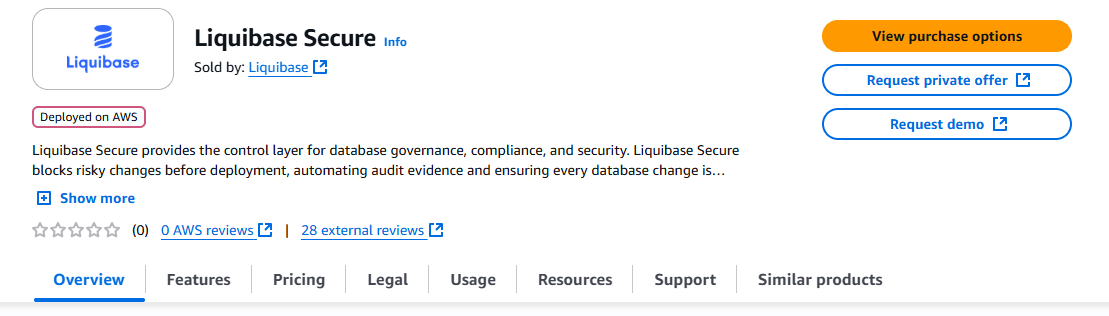
Configure your software contract.
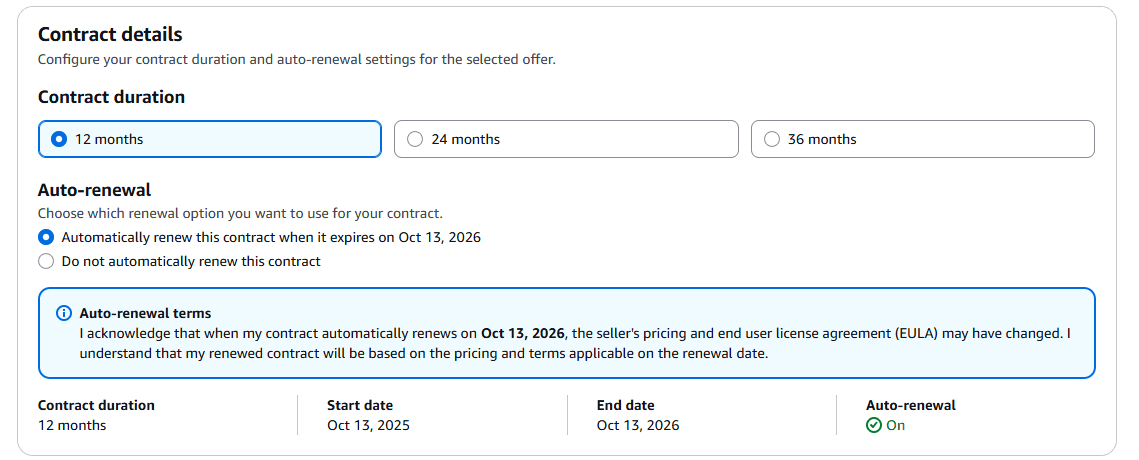
You'll need to select:
How long the contract will run
If you want Liquibase to automatically renew
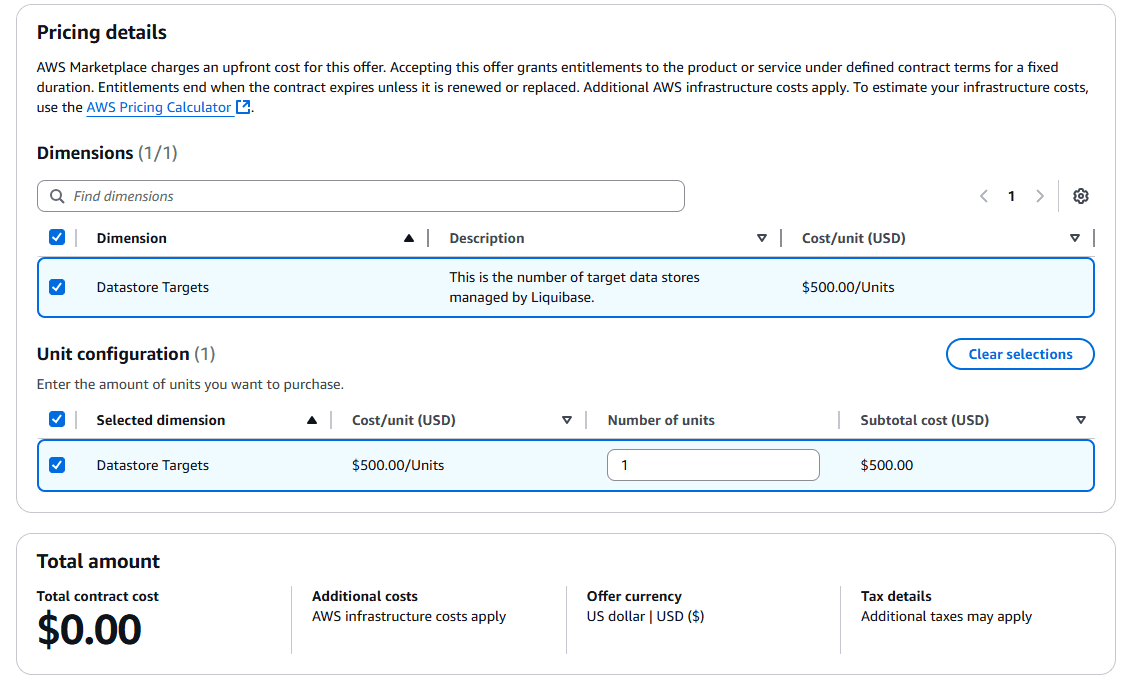
How many datastore targets you need
Set your contract details and duration.
Type the number of units you want to purchase.
Click Subscribe to complete your purchase.
To launch Liquibase from the Amazon portal, select Launch from the active subscriptions tab.
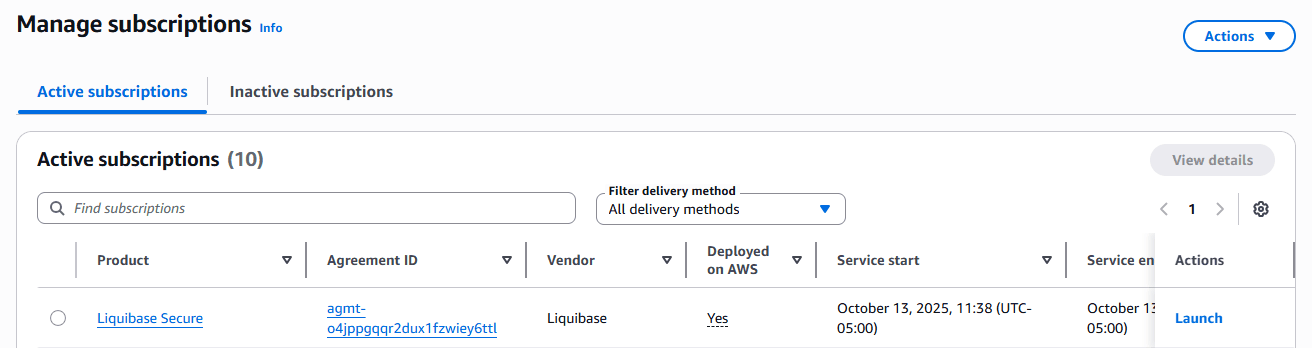
After purchasing the Liquibase Secure container, this AWS message will appear which displays the Container image location.
This location is necessary when creating any ECS task, copy this directory and save it in a secure location because this is the only moment it will appear.
Example AWS container image location
aws ecr get-login-password \
    --region us-east-1 | docker login \
    --username AWS \
    --password-stdin 709825985650.dkr.ecr.us-east-1.amazonaws.com

CONTAINER_IMAGES="709825985650.dkr.ecr.us-east-1.amazonaws.com/liquibase/liquibase/liquibasepro:4.29.2"

for i in $(echo $CONTAINER_IMAGES | sed "s/,/ /g"); do docker pull $i; done