Use Flow files with Spring
Liquibase Flow Files let you create portable, platform-independent Liquibase workflows that can run anywhere without modification. This includes Jenkins, GitHub actions, a developers desktop, or any other CI/CD support tool. Flow Files with full Spring Boot integration support added are available in Liquibase 5.1 and later.
Before you begin
Install Liquibase Secure 5.1
Install Spring or Spring Boot
Configure your liquibase.properties file
Create a Flow file
Procedure
Ensure your pom file is configured.
Be sure to replace these items within your POM file so it works with your specific environment.
POM file item | Replacement |
|---|---|
| Replace with your organization |
| Replace with your project name |
| Replace with your version |
| Replace with your project name |
| Replace with your description |
| Replace with your Java version |
| Replace with your database |
| Replace with your driver |
| You may need to match your existing Spring Boot version |
Example POM file
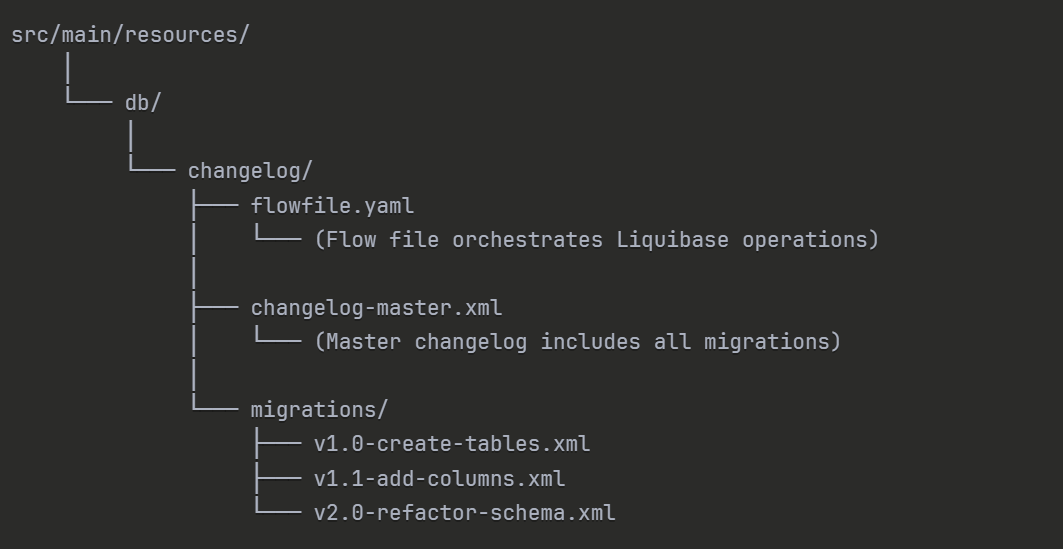
Save your flow file in your Spring project
We recommend storing the file in the same location you would store your changelog.
Example:
Add this code to your Spring application.properties file.
Configure your application.properties file within Spring to recognize the Liquibase Flow file
Configure your database connection
Ensure your liquibase.properties file contains your connection credentials that the Flow file will use.
Now that your project is configured, start the Spring Boot application using Maven:
The application will compile and launch, making the Liquibase integration available.
Results
Spring can now use all Liquibase Flow file functionality.