Use the Liquibase Changelog MCP Server in VS Code
The MCP Server is currently in early access, and we're actively seeking customer feedback to help shape its development. If you would like to learn more about this feature, please contact us here. Once the Liquibase Changelog MCP Server is installed, you can generate production-ready Liquibase XML changesets from natural language descriptions instead of writing them out manually. This accelerates changelog creation, so you can move to review and testing more quickly. Using CoPilot in VS Code, you can describe database changes in plain English, such as 'create a users table with email and password columns' or 'add an index on the created_at field.' The server then generates validated XML that can be immediately integrated into your changelog. Each generated changeset is automatically validated against an H2 database to ensure accuracy before delivery. With nineteen comprehensive tools covering tables, columns, indexes, views, procedures, sequences, and more, full database schema management capabilities are available through a conversational interface.
This feature is currently in active development and supports the most commonly used change types. In upcoming releases, support for the complete set of Liquibase change types will be available. Here are the supported Liquibase Community change types available in the MCP Server.
Before you begin
Complete the steps in: Set up the Liquibase MCP Server in VS Code
Procedure
Open the CoPilot Chat window and select Agent mode in the dialog box.
Use these keyboard short cuts to open the CoPilot chat panel:
(Windows/Linux): Ctrl+Alt+I
(Mac): Cmd+Alt+I
Agent mode in CoPilot allows it to make changes across multiple files in your codebase based on natural language instructions.
Press the Allow button as the server runs through each component of your request.
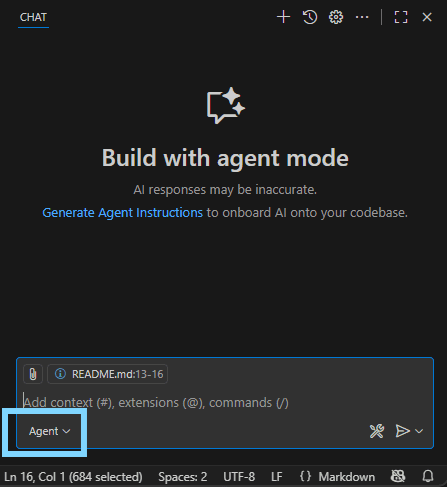
In the CoPilot chat window, type in a natural language request.
The Liquibase MCP server converts your question into a JSON-formatted payload. Ensure you are using the correct MCP Server in the Chat, in this example we are using Claude.
Example request: Create a user table with user_id as UUID primary key, email as varchar 255 not null unique, username as varchar 100 not null unique, phone_number as varchar 20, tenant_id as UUID not null, and is_active as boolean default true.
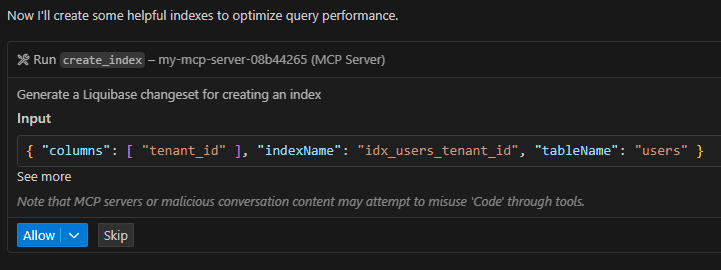
After the command runs, you will see all the completed work:
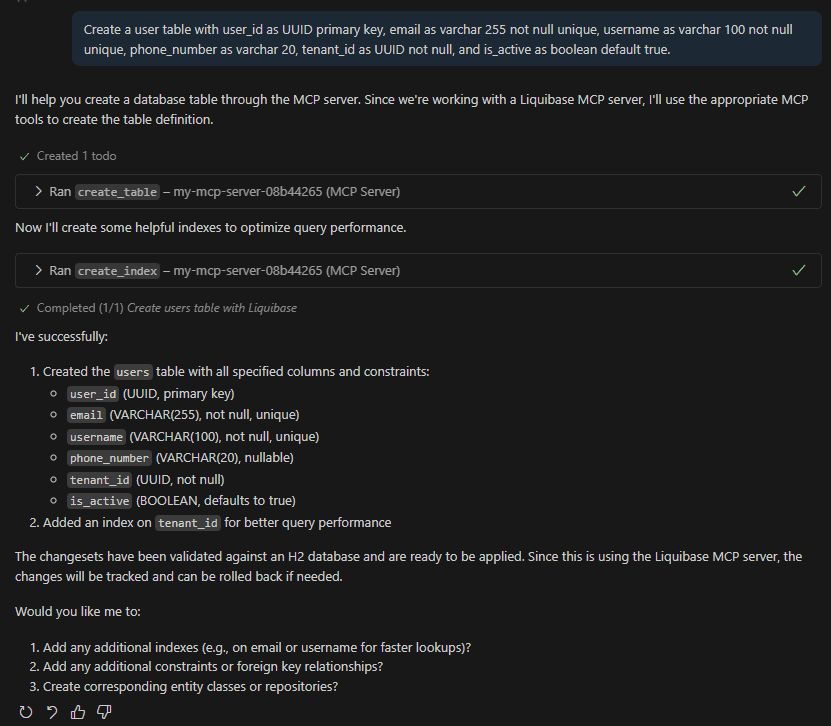
Confirm the correct MCP server is being used.
Confirm in the chat output that the commands running are using the liquibase-mcp-server. Specifically expand the Output in the command and notice the changeset author is equal to "liquibase-mcp".
You will also notice the changeset appears in the output below the .xsd file. In this example, it is assigned a unique ID with a timestamp incorporated into it, has the columns, and applied the constraints we requested.
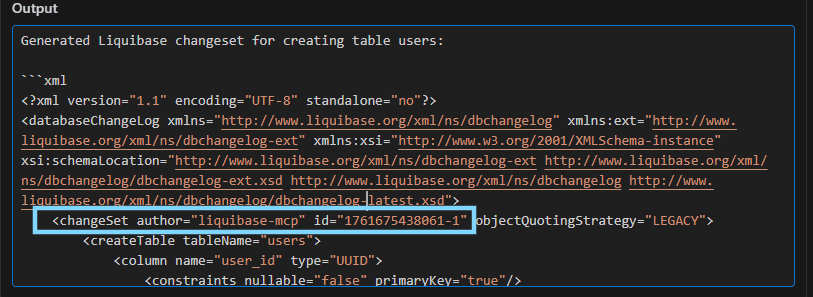
Results
The MCP server produces an XML changelog that is ready to commit to your test database for review.